
School preparation
Is reception ready
for the new term?
New pupils, changing classes and returning staff can expose gaps in last term's setup. Use a focused sign-in review before the first busy morning.
Start with what has changed
A new term is not just a larger list of names. Pupils move groups, colleagues change roles, entrances reopen and reception cover may be different. Ask the office, attendance and IT teams to agree which changes affect sign-in before editing the setup.
Use one review list with an owner for each decision. Do not treat every person missing from a refreshed roster as somebody who should be deleted. A changed permission or unavailable data field may also explain a difference.
Review school records deliberately
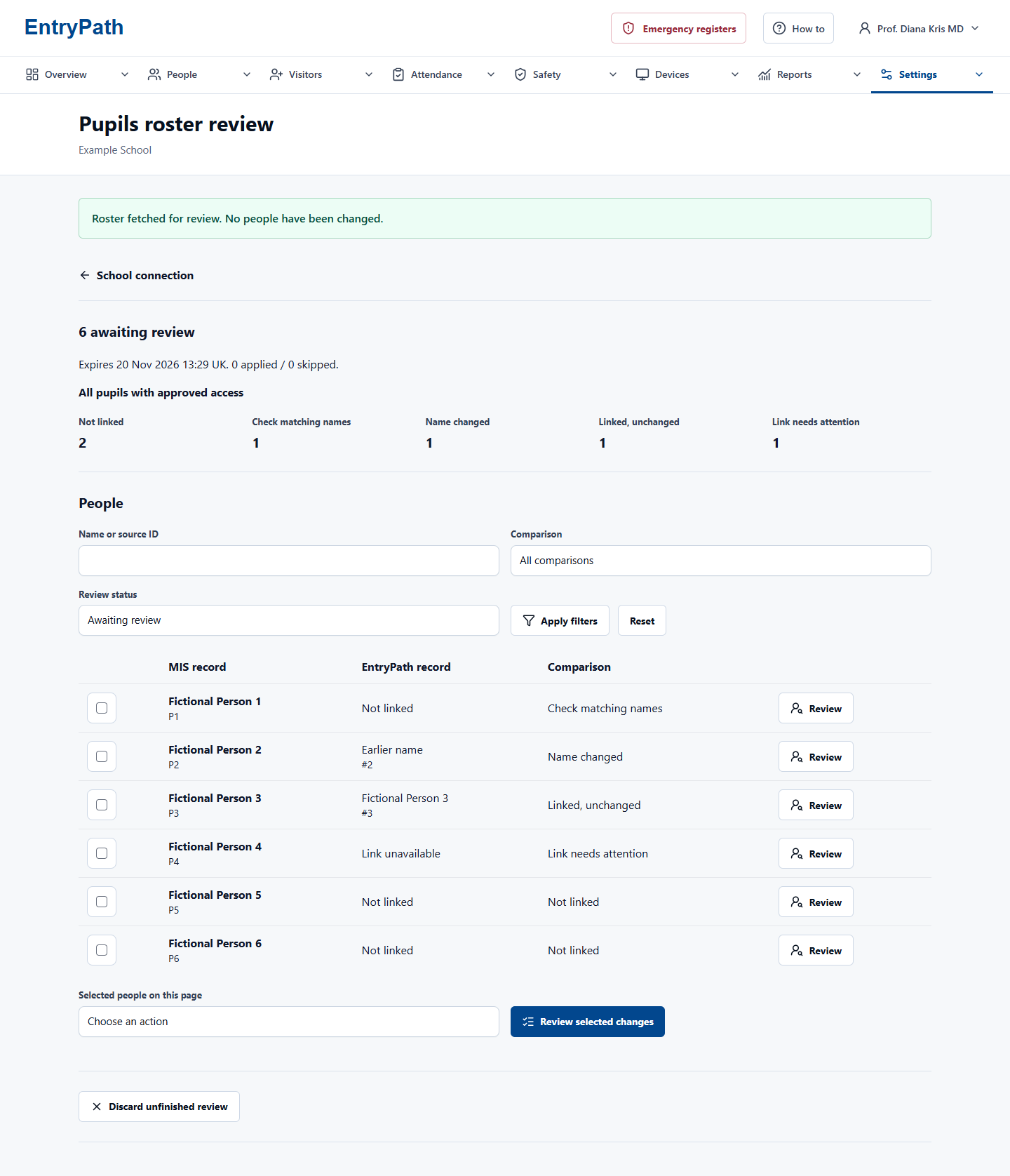
For a connected school, check the selected school and the successful refresh time, then review proposed additions, existing links and group changes. Year groups and form groups serve different purposes; check what your MIS actually provides.
EntryPath's Wonde roster workflow supports review before changes are applied. Scheduled checks can draw attention to changes, but do not automatically add people, rename them or remove leavers. School permissions and available data must be confirmed for the connection.
Walk the arrival journeys
- A new visitor: can they identify the right journey, read the current rules and find help?
- A returning colleague: does the existing record still have the right group and site?
- A late pupil: does the office record the arrival and follow the separate MIS process?
- A temporary member of staff: is the welcome clear without suggesting school checks are complete?
Use fictional records for these rehearsals. The supply staff guide and late-arrival guide provide more detailed scenarios.
Review access and devices together
Check that reception cover can perform the required tasks with their own account. Review which sites each role can see and which devices can operate an emergency register. Do not share an unrestricted administrator account to make the first morning easier.
At the actual entrance, test power, network, screen position and any printer. Check mobile access only for the groups intended to use it, and confirm pupil sign-out restrictions remain effective across enabled routes. Keep a clear assisted alternative.
Refresh the drill brief
Confirm the site's emergency procedure with the responsible team. In a practice session, check the date and session of any school attendance information, and include a pupil who arrives after registration and a person at a different assembly point.
If protected offline viewing is used, an approved device needs a current saved copy and the separate unlock passphrase. It is not live or editable offline. Check capture time and expiry, and retain an independent fallback. Follow the connectivity planning guide for the register-related questions.
Finish with a first-day handover
Keep the review proportionate. The goal is confidence in the everyday journeys, not changing every setting before term starts. See the reception setup guide when a wider redesign is needed.
Keep exploring
A useful next read.
MIS attendance is not the whole sign-in picture
Understand how roster data, school-session marks and actual arrival records fit together.
Read the guide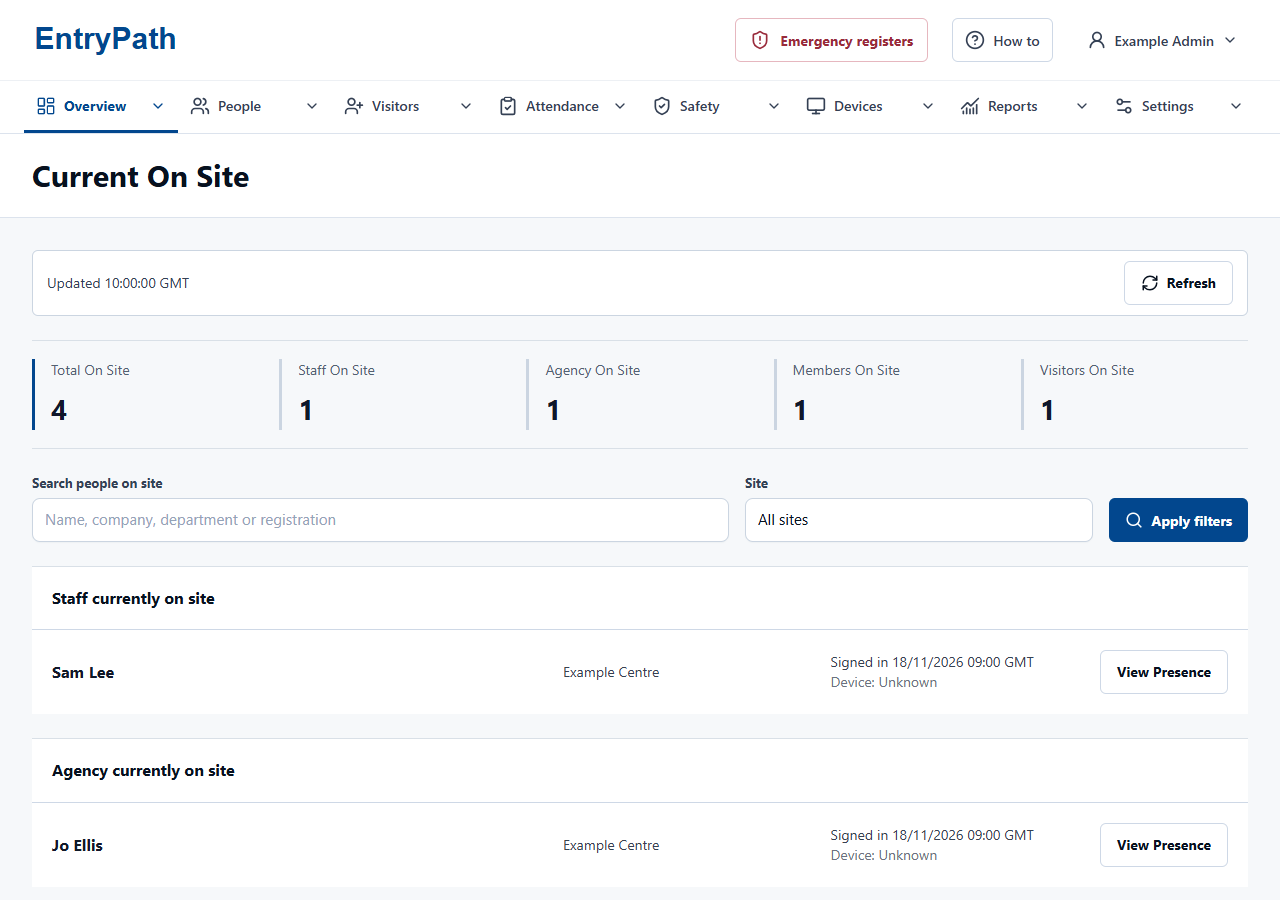
Late arrivals. Early departures. Clearer records.
Plan the office handover when the school day changes after registration.
Read the guide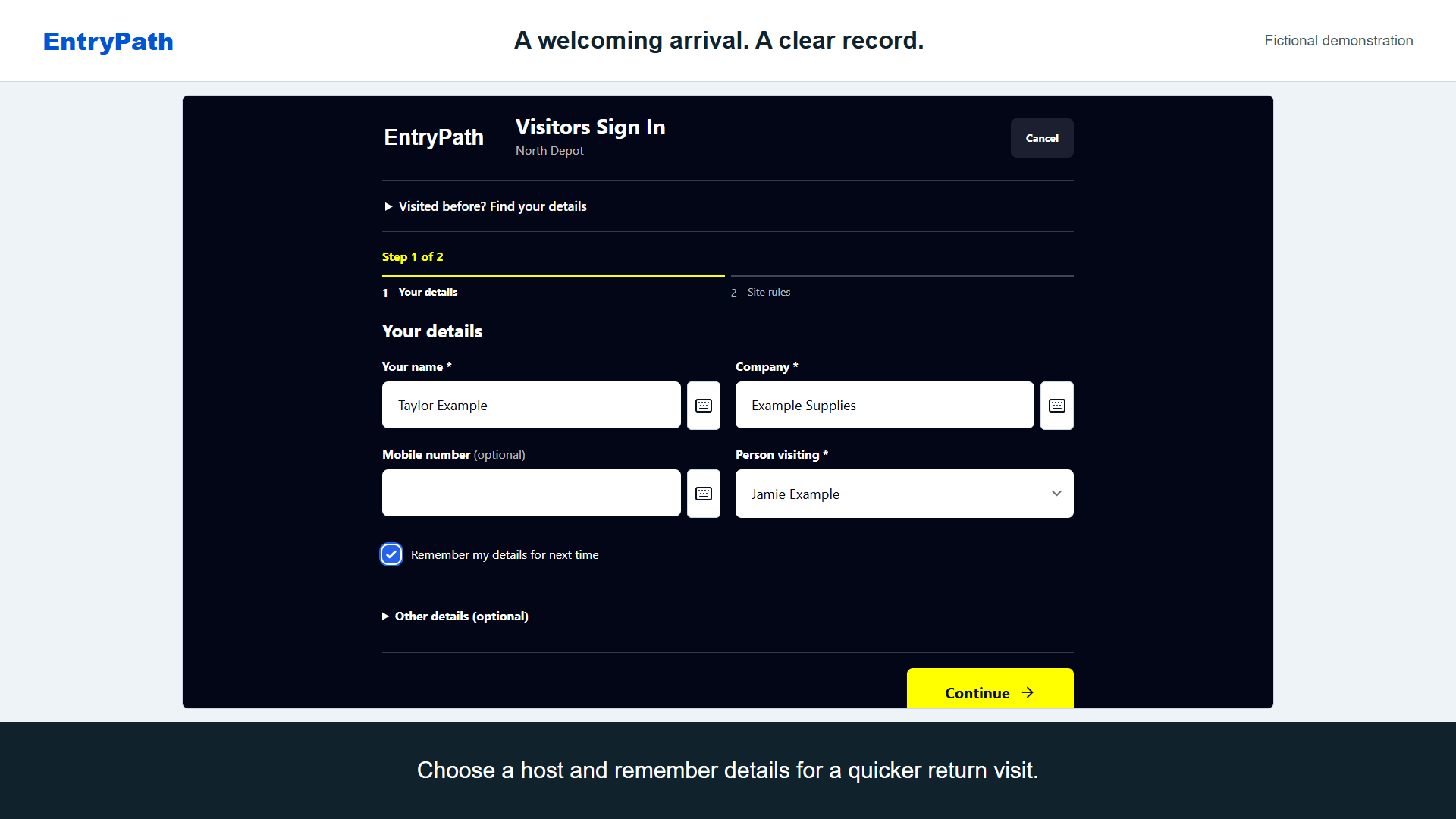
A clear welcome for supply staff
Make temporary staff arrivals understandable without blurring the school's checks.
Read the guideRehearse your first morning.
Explore the school journeys and records before introducing a new system.