
School buying guide
Choosing a school
sign-in system
A useful demonstration should look like your school day. Compare visitor arrivals, staff access, pupil movements and emergency roll call before deciding what belongs at reception.
Start with the people using it
Write down who arrives through each entrance: parents attending appointments, contractors, supply staff, employees and pupils arriving after registration. A school visitor management system should keep those journeys recognisable, without making every person answer the same questions.
Include the school office in the demonstration, not just the person buying the software. Ask them to test a returning visitor with a changed phone number and a visitor who needs assistance. Count the steps and check what reception sees afterwards. EntryPath's school sign-in system uses separate groups and configurable journeys for these different needs.
Give every supplier the same demo brief
Use fictional people and the same tasks so your comparison is fair. Record whether each task works, needs configuration or is not supported, together with any equipment or extra service required.
Ask to see the staff view as well as the kiosk. A polished welcome screen is only one part of the working day.
Separate MIS integration from visitor sign-in
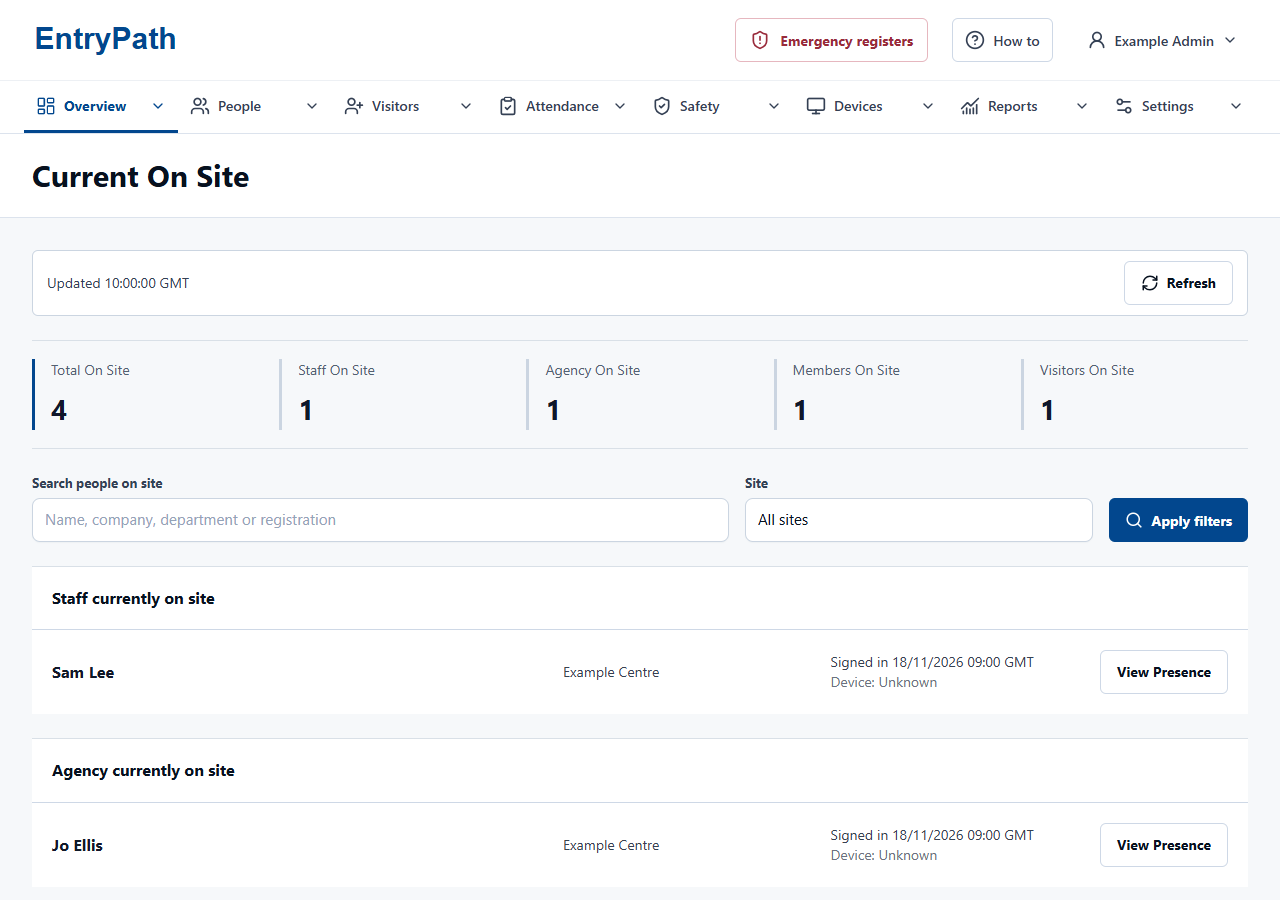
A digital reception register and your school MIS serve different purposes. Decide whether you need to import pupil and staff lists, organise year and form groups, or read attendance information for roll call. Ask which data your particular MIS provides and what your school must approve.
EntryPath's Wonde connection reads approved information and lets an administrator review roster changes. It does not write attendance marks back. Our MIS attendance and sign-in guide explains the distinction using a school-day example.
Include a drill in the comparison
Ask how the register handles somebody at the wrong assembly point, a missing name and a device losing its connection. Check where the list came from and when it was last updated. A record of an arrival is not a confirmation that the person has reached safety.
In EntryPath, connected authorised devices share roll-call decisions. Protected offline viewing is a previously saved, timestamped copy, not offline editing. Use the school evacuation checklist alongside your school's emergency procedure and an independent fallback.
Check access and equipment before ordering
Ask who can see pupil lists, manage people, view reports and operate emergency devices. Test a site-limited account, not only an administrator. Check that your chosen pupil sign-out restriction also applies to the optional sign-in methods you intend to use.
Place the proposed kiosk where it will actually be used. Check screen readability, mounting, charging, reception connectivity and how staff will help someone who cannot use it. Confirm the exact printer or scanner where needed using the hardware checklist.
Compare a complete school budget
EntryPath is £30 per site per month or £300 per site per year, paid upfront, with hosting included and no separate hosting charge. Optional assisted setup is based on £199 per site, with a discount on the whole setup total for 2–5 sites. Standard remote assisted setup is free for 10+ sites with annual payment upfront or a 12-month minimum term on monthly billing. The monthly option then automatically becomes 30-day rolling, with 30 days’ notice to cancel. For 6–9 sites, setup is quoted separately. Equipment, any MIS provider charges and other agreed services are separate; your quote confirms the scope and tax treatment.
Compare the subscription options with the full proposal. Agree which locations count as sites, who prepares the records and how staff learn the new process. After choosing a system, use the reception setup checklist for the practical handover.
Keep exploring
A useful next read.
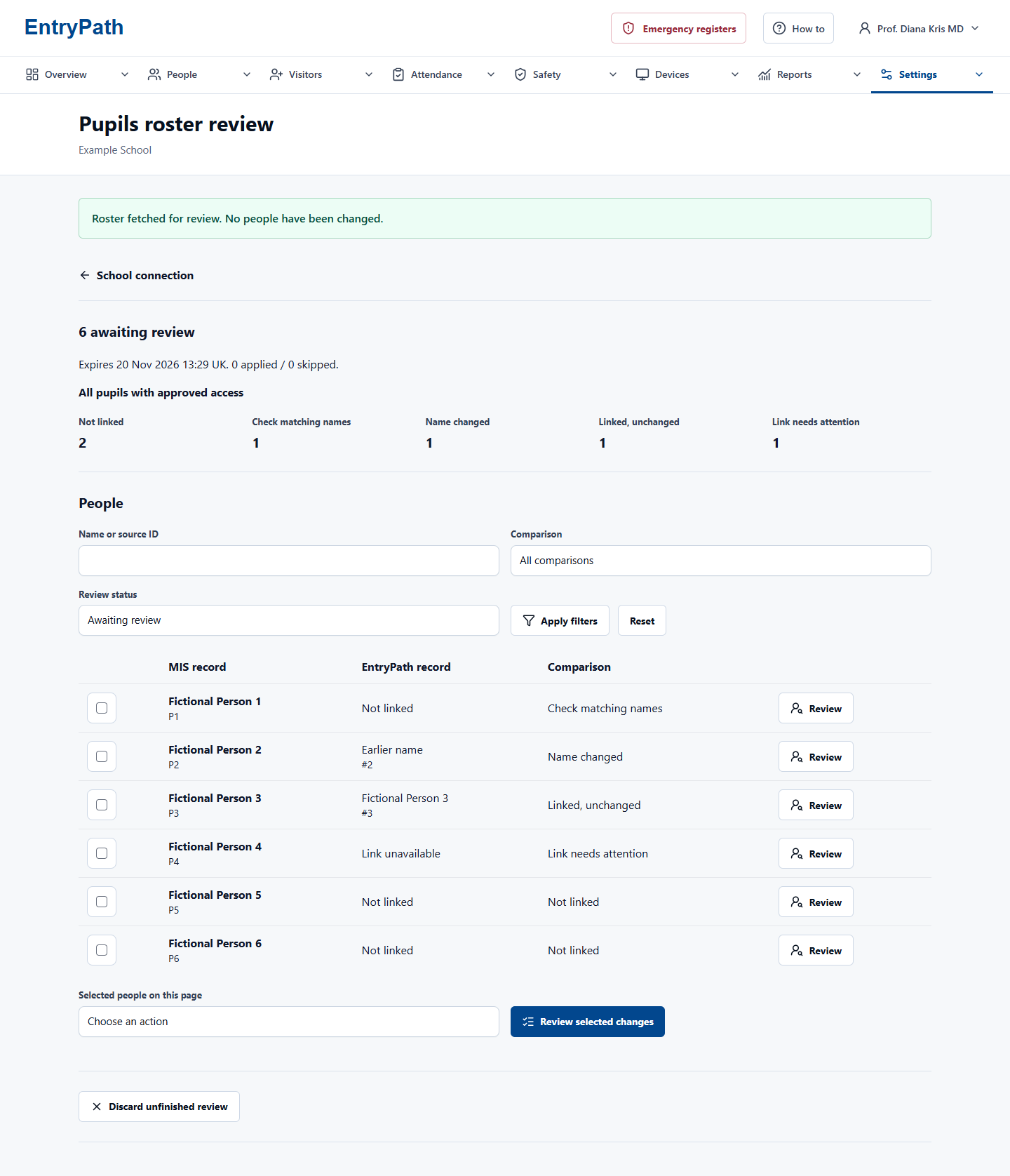
MIS attendance is not the whole sign-in picture
Understand how roster data, school-session marks and actual arrival records fit together.
Read the guide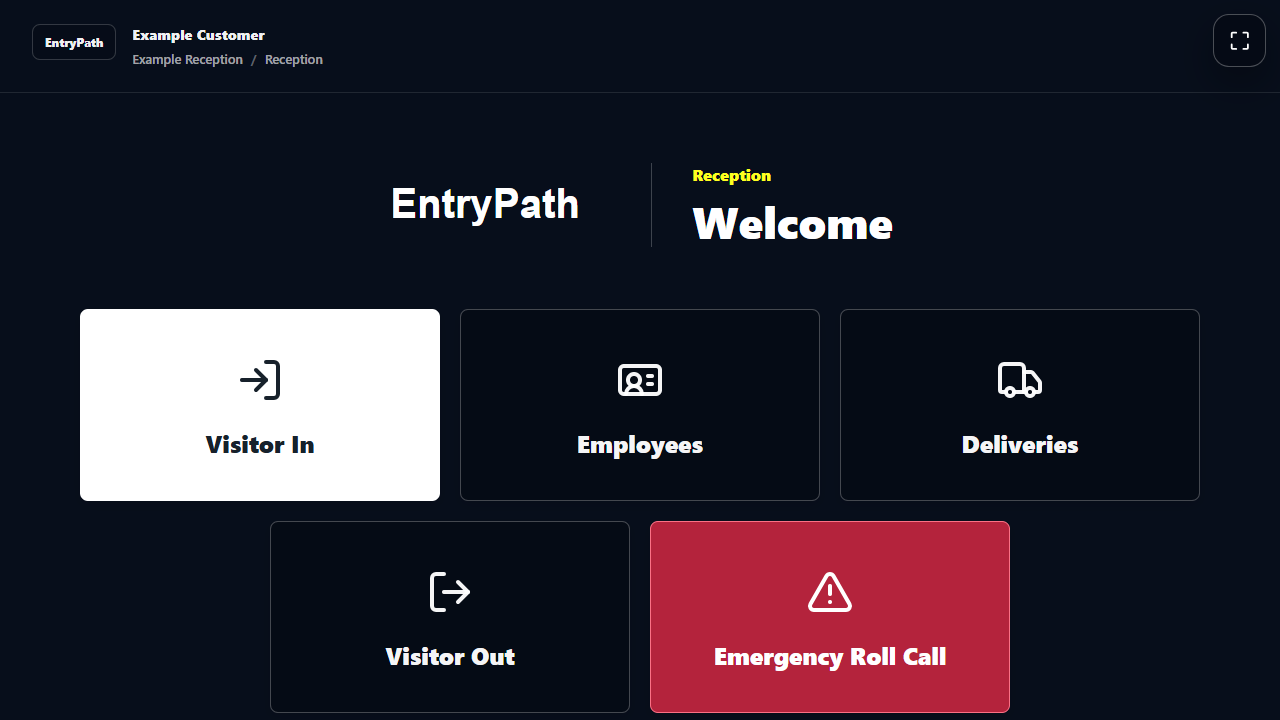
The school reception sign-in checklist
Prepare groups, permissions, assistance and handovers before changing the welcome screen.
Read the guide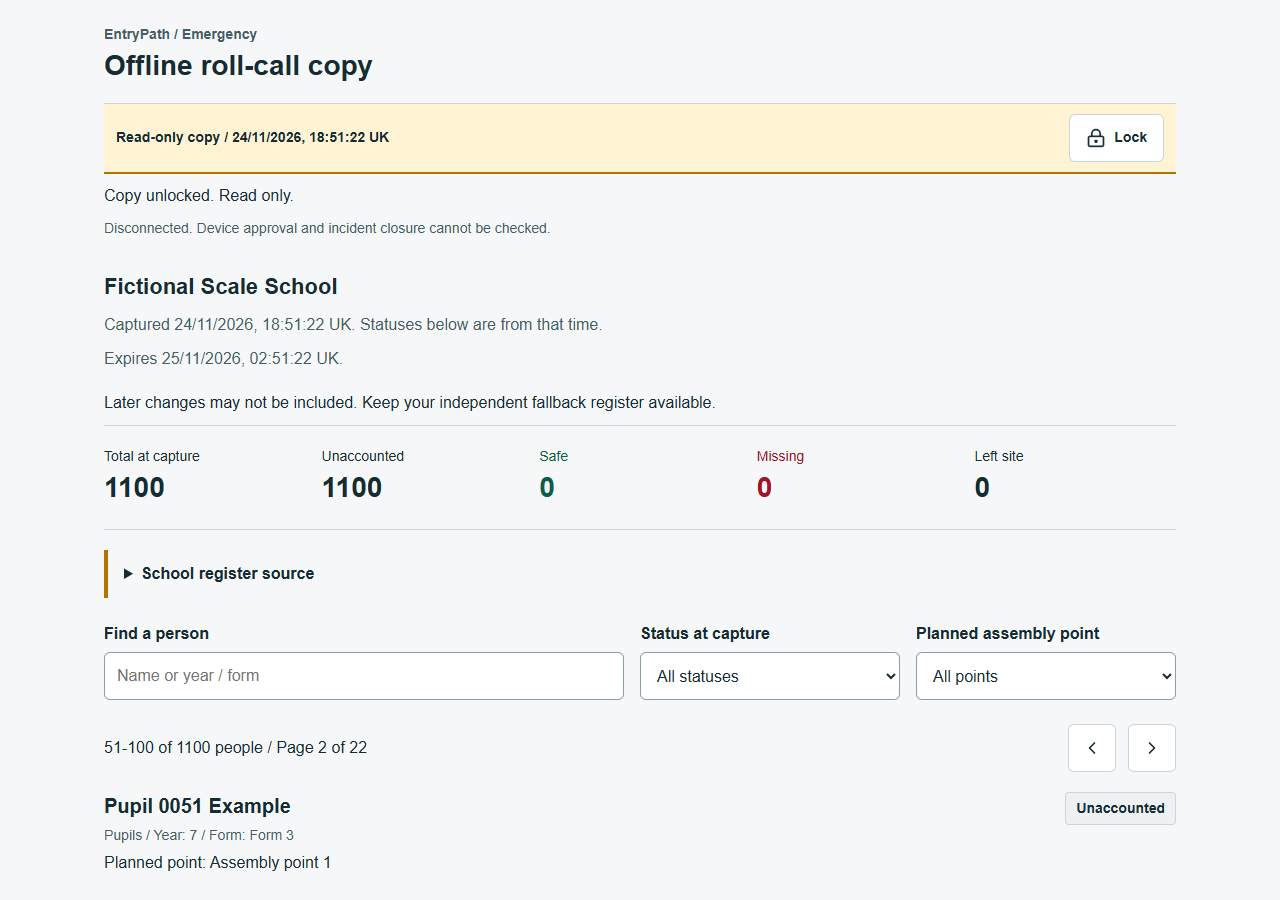
The school evacuation roll-call checklist
Rehearse school-session data, missing names, different points and connection loss.
Read the guideBring your school day to the demo.
Tell us your entrances, groups and MIS. We will walk through the relevant journeys using fictional records.